Swipe Actions
Swipe gestures let you quickly manage expenses without opening them.
Available Swipe Actions
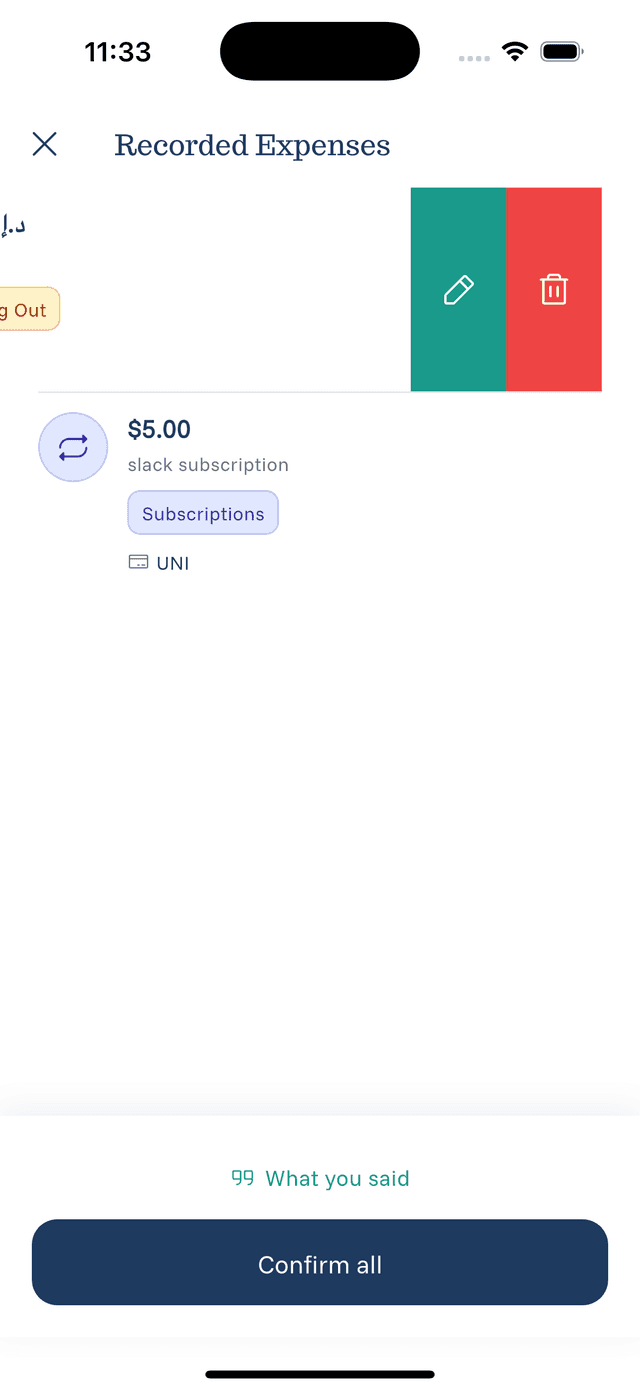
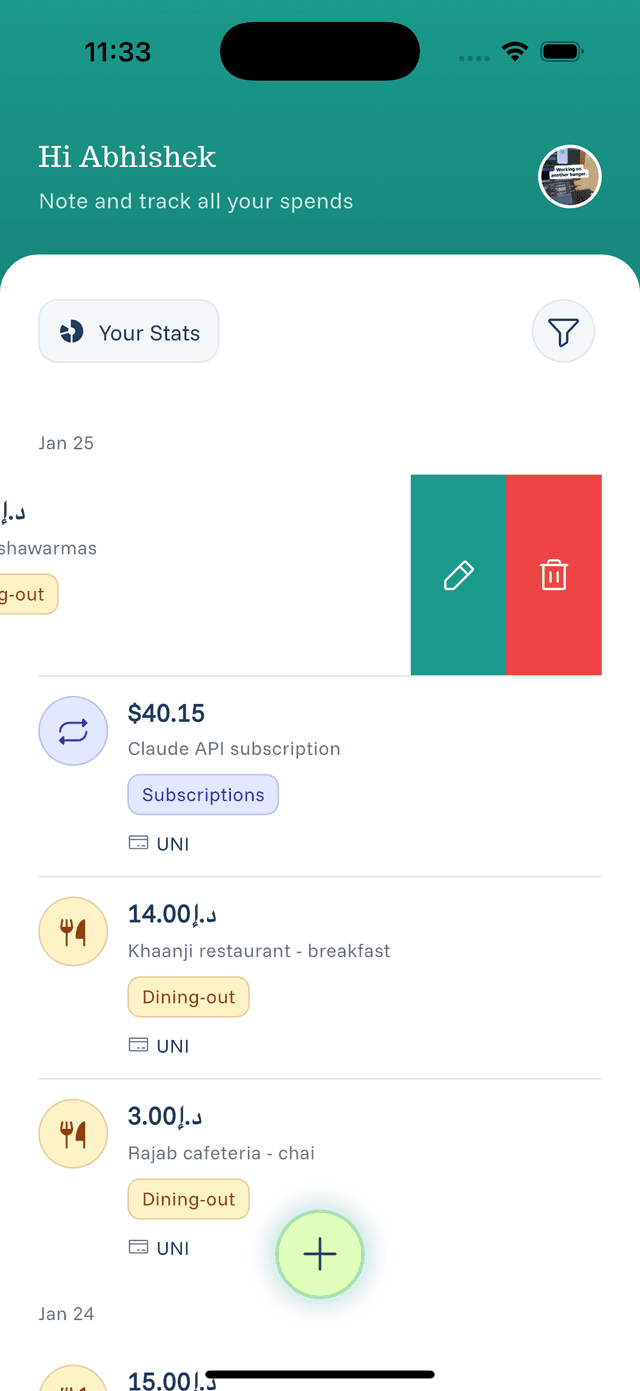
Swipe Left to reveal:
- Edit — Open the expense for editing
- Delete — Remove the expense
How to Swipe
- Find the expense in your list
- Press and drag left on the expense row
- Action buttons appear on the right
- Tap the action you want
Swipe Tips
- Full swipe — Swiping all the way may trigger the primary action
- Partial swipe — Reveals buttons to choose from
- Cancel — Swipe back right or tap elsewhere to cancel
Where Swipe Works
Swipe actions work in:
- Main expense list on home screen
- Review screen after voice recording
- Expense details (if applicable)
When to Use Swipe vs Tap
Use swipe when:
- You want to quickly delete an expense
- You need to make a quick edit
- You're cleaning up multiple entries
Use tap when:
- You want to see full details first
- You're unsure which expense is which
- You need to verify before acting