Deleting Expenses
Remove expenses that were logged incorrectly or are no longer needed.
How to Delete
Method 1: Swipe to Delete
- Find the expense in your list
- Swipe left on the expense
- Tap the Delete button
- Confirm the deletion
Method 2: From Details
- Tap the expense to open details
- Tap the Delete button
- Confirm the deletion
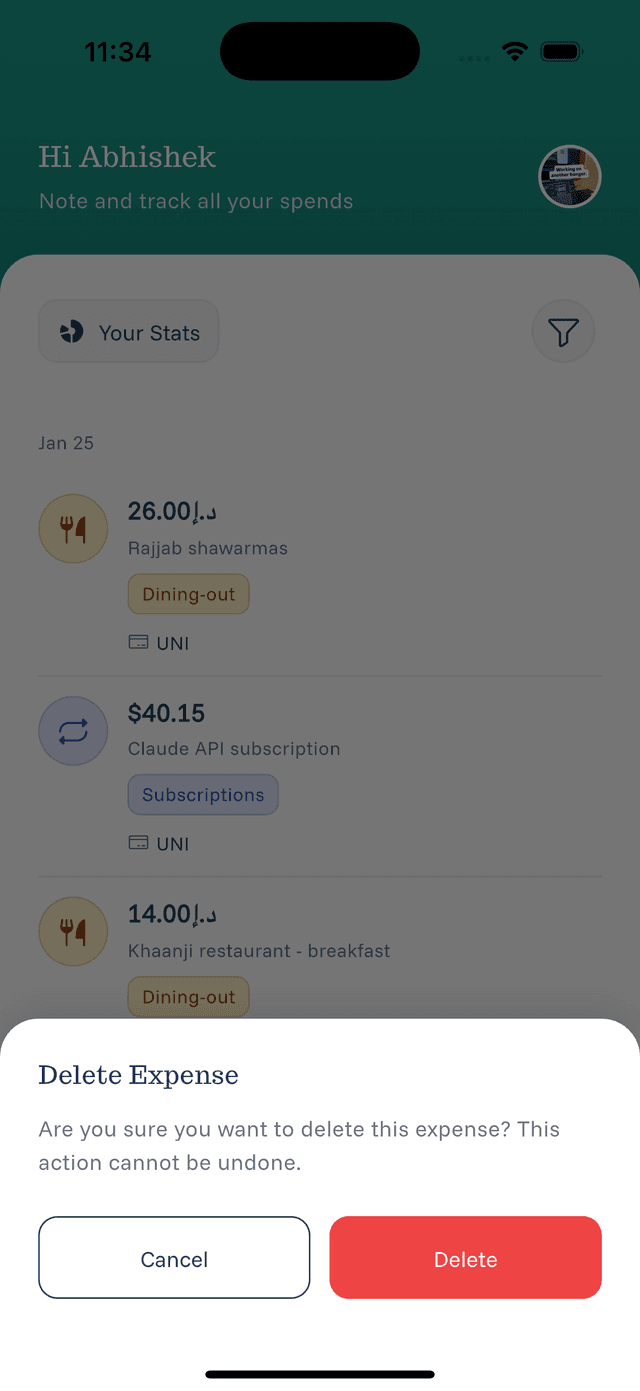
Confirmation Dialog
Before deleting, you'll see a confirmation asking if you're sure. This prevents accidental deletions.
- Confirm — Permanently delete the expense
- Cancel — Keep the expense, return to list
What Happens After Deletion
- The expense is permanently removed
- Statistics update to reflect the change
- The expense cannot be recovered
When to Delete
Delete expenses when:
- You logged a duplicate
- The expense was entered by mistake
- You need to re-enter with different details
- The transaction was refunded
Caution
Deleted expenses cannot be recovered. If you're unsure, consider editing instead of deleting.