Editing Your Profile
Personalize your account with your name and photo.
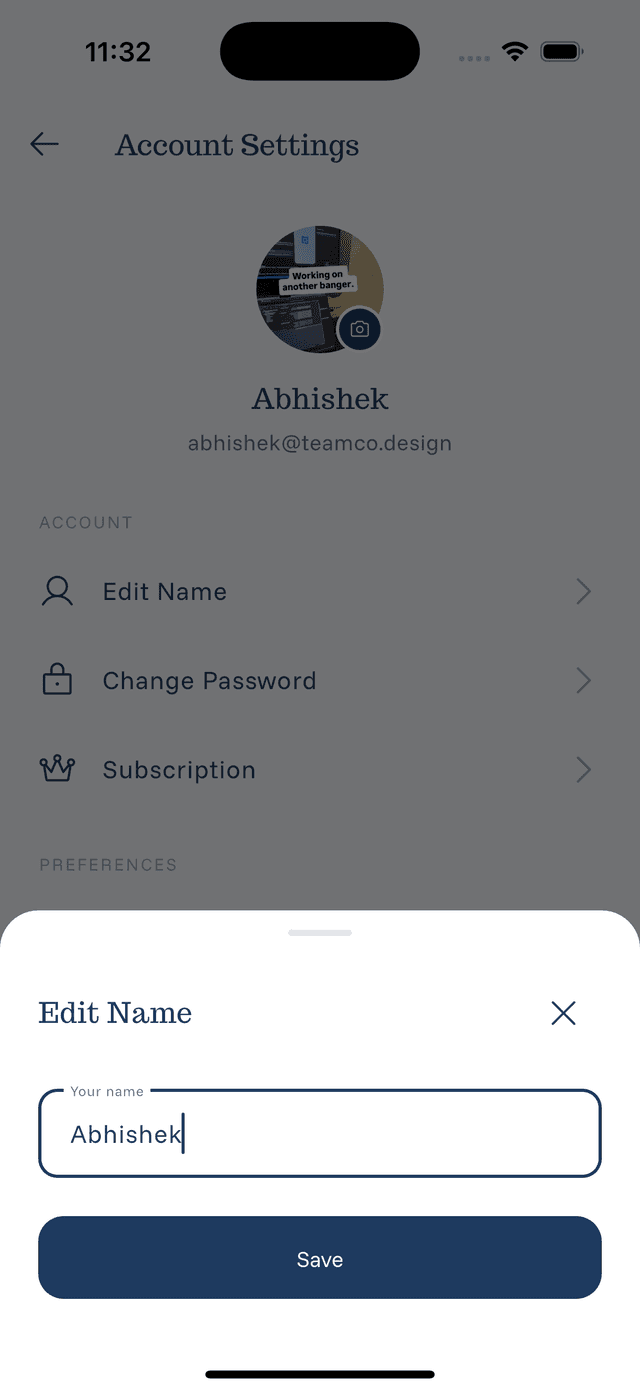
Changing Your Name
- Go to Settings
- Tap on your name or the edit button next to it
- Enter your new name
- Tap Save
Your name appears:
- On the home screen greeting
- In your profile section
- In exported data (if applicable)
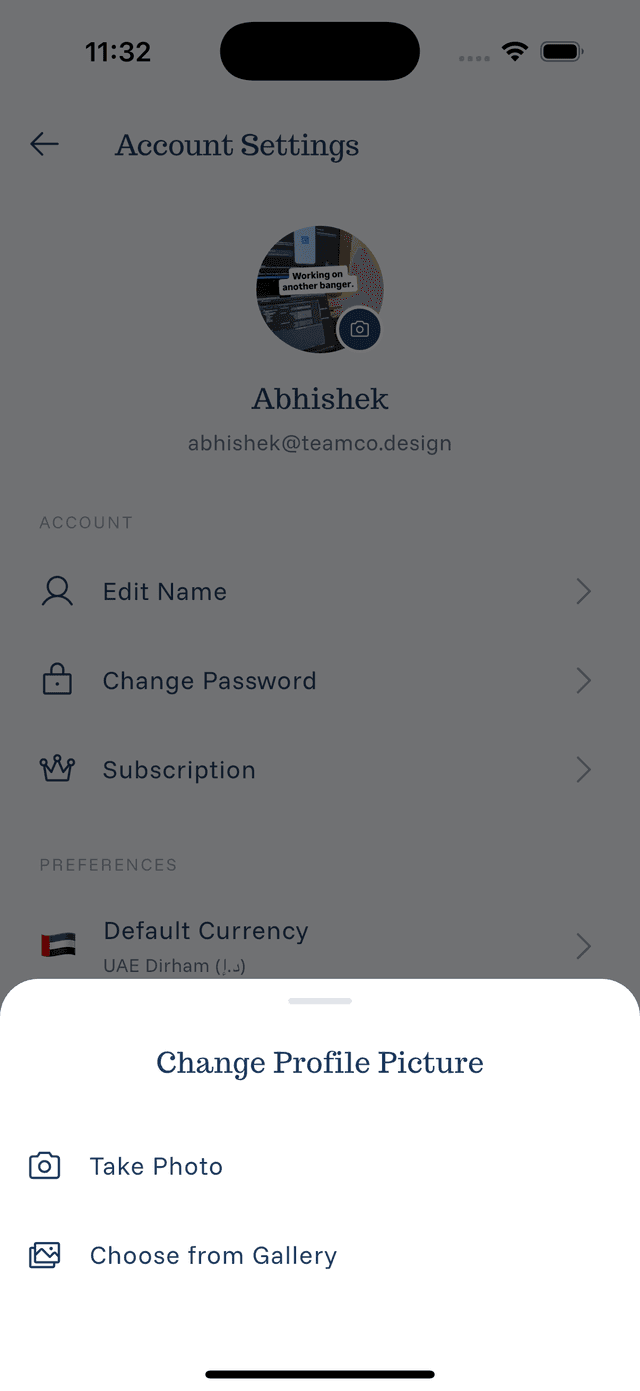
Changing Your Profile Picture
- Go to Settings
- Tap your profile picture or the camera icon
- Choose an option:
- Take Photo — Use your camera
- Choose from Library — Select an existing photo
- Crop or adjust if needed
- Tap Save or Done
Profile Picture Tips
- Use a clear, recognizable photo
- Square images work best
- The image is stored locally
- You can change it anytime
Why Personalize?
A personalized profile:
- Makes the app feel more yours
- Helps identify your account on shared devices
- Adds a personal touch to your financial tracking