Managing Payment Sources
Keep your payment sources organized and up to date.
Viewing Your Sources
- Go to Settings
- Tap Payment Sources
- See all your configured sources
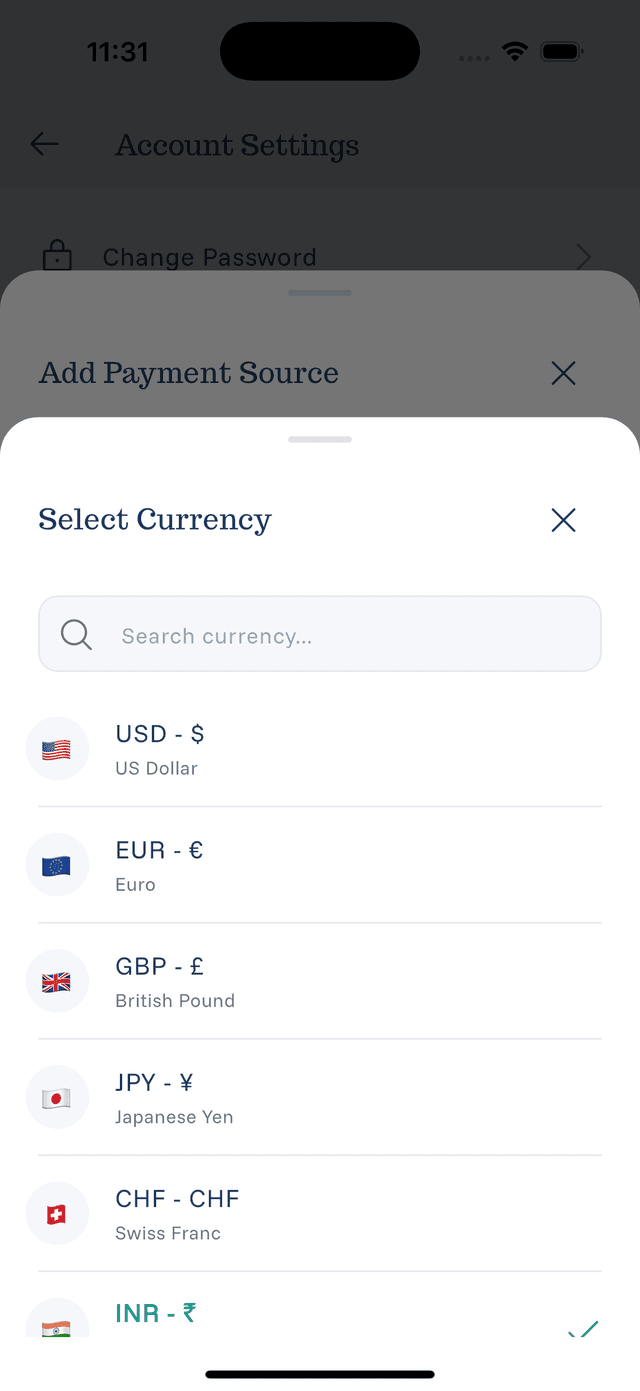
Adding a Source
- Tap Add Source or the plus button
- Enter the source name
- Select the currency
- Tap Save
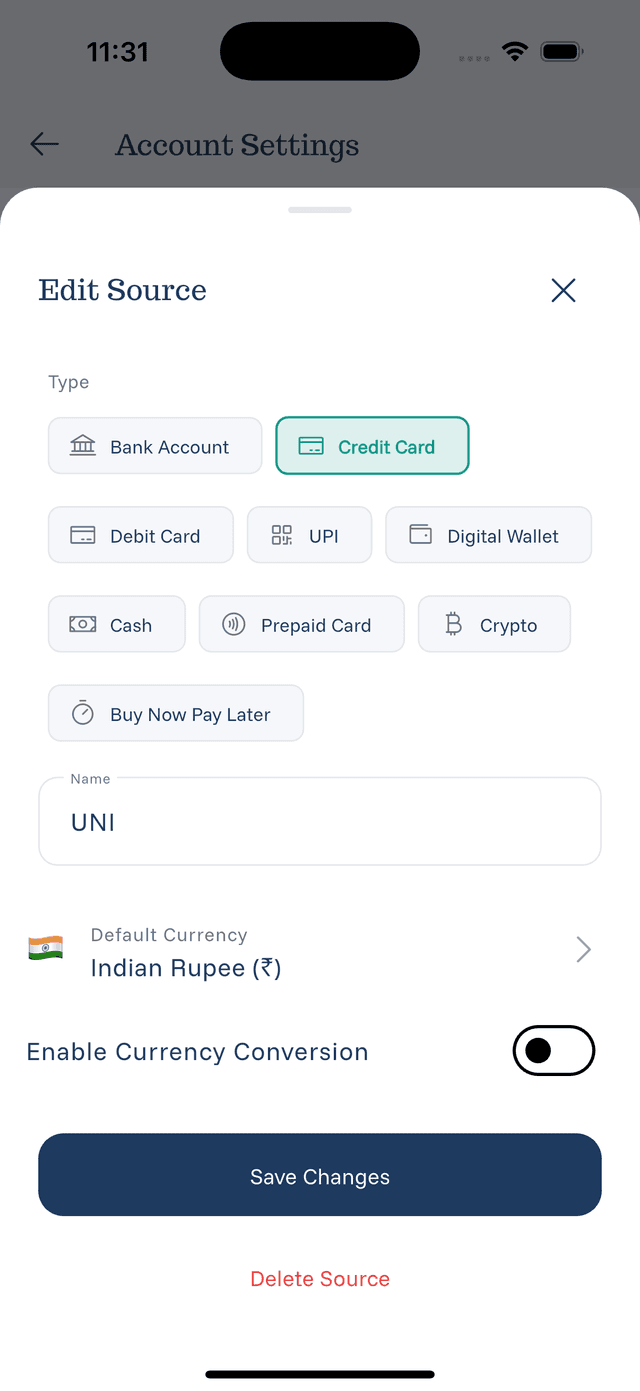
Editing a Source
- Tap on an existing source
- Modify the name or currency
- Tap Save
Deleting a Source
- Swipe left on the source, or tap to open
- Tap Delete
- Confirm the deletion
Note: Existing expenses keep their original source name even if deleted.
Setting Default Source
Your default source is pre-selected when adding expenses:
- Open a source
- Toggle Set as Default
- Or look for a default indicator
Best Practices
- Name clearly — "Chase Sapphire" is better than "Credit Card"
- Set correct currency — Matches your card's billing currency
- Review periodically — Remove closed accounts
- One source per account — Don't duplicate