Setting Dates for Expenses
Log expenses with the correct date, even if you're entering them later.
Why Date Matters
Accurate dates help you:
- See your spending timeline correctly
- Get accurate statistics by time period
- Remember when purchases were made
- Track against budgets properly
Changing the Date
- Open the expense form (manual entry or edit)
- Tap the Date field
- Use the date picker to select the correct date
- Confirm your selection
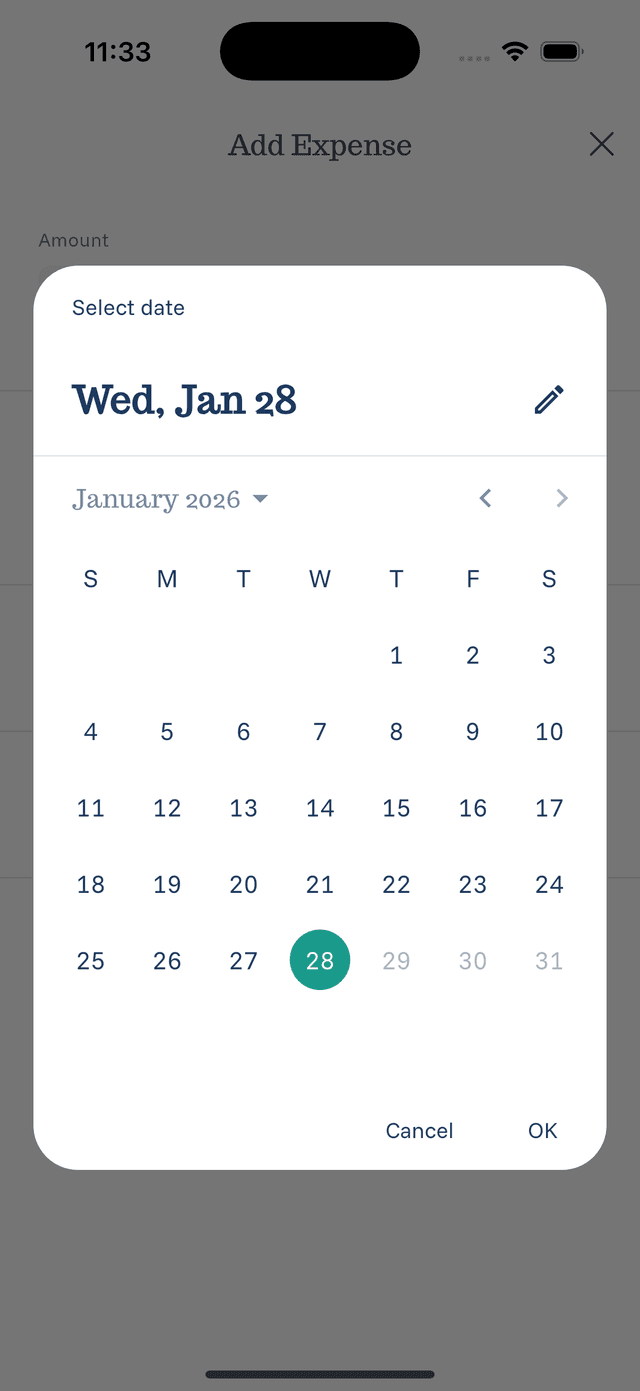
The Date Picker
The date picker shows:
- Calendar view — Tap any day to select it
- Current date — Highlighted for reference
- Month navigation — Swipe or tap arrows to change months
Tips for Backdating
- Keep receipts — They help you remember exact dates
- Log weekly — Don't let expenses pile up too long
- Be approximate — If unsure, pick your best guess
- Check statements — Use bank or card statements to verify dates
Default Behavior
- New expenses default to today's date
- Voice recordings use today's date unless you specify otherwise