Editing Expense Details
Made a mistake or need to update an expense? You can edit any field.
How to Edit an Expense
From the expense list:
- Find the expense you want to edit
- Swipe left on the expense
- Tap Edit
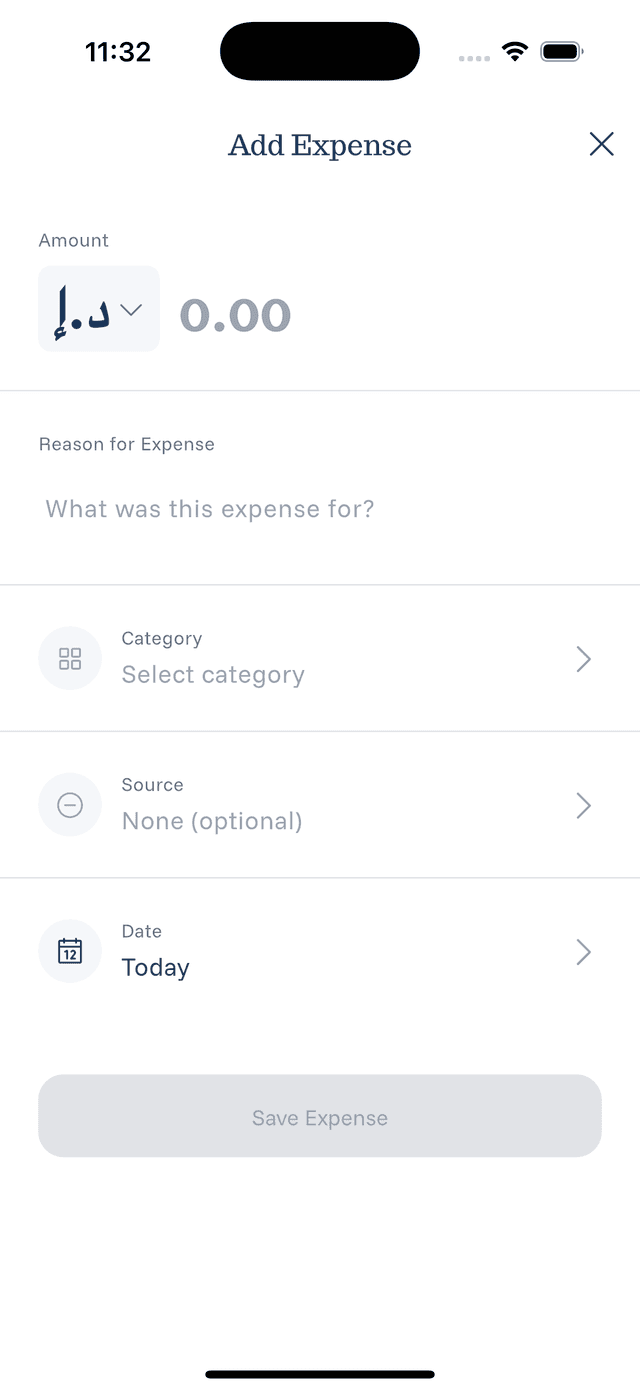
- The expense form opens with current values
From expense details:
- Tap the expense to open details
- Tap the Edit button
- Make your changes
What You Can Edit
- Amount — Fix the value or change currency
- Description — Update what the expense was for
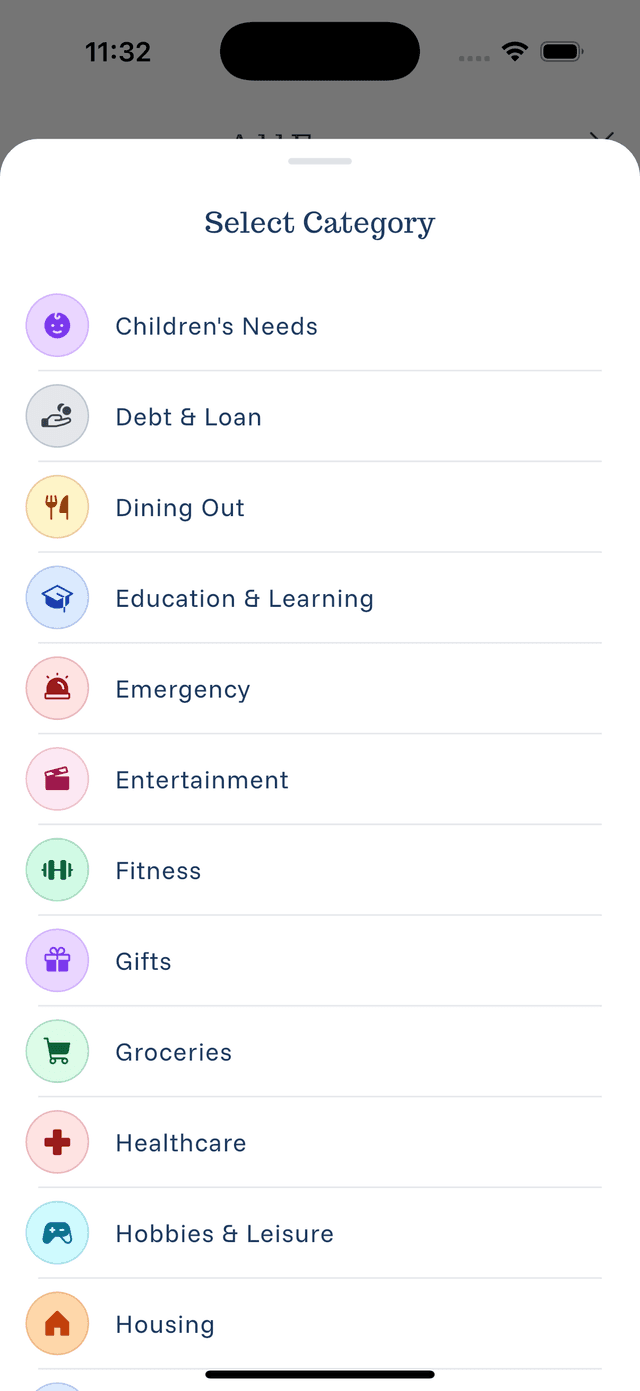
- Category — Change to a more appropriate category
- Source — Update the payment method
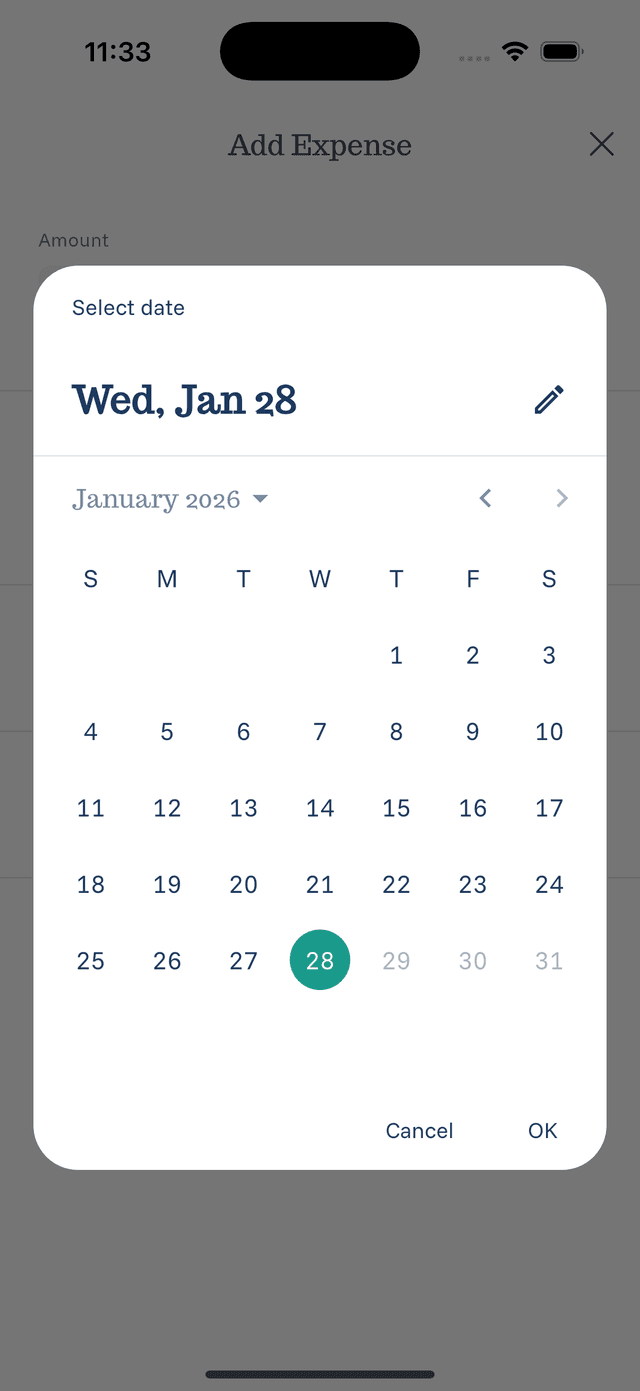
- Date — Correct when the expense occurred
Saving Changes
After making edits:
- Review all fields
- Tap Save or Update
- Changes are applied immediately
- Statistics update to reflect the changes
Bulk Editing
Currently, expenses must be edited one at a time. If you have many similar changes, consider:
- Deleting and re-adding expenses
- Being more careful during initial entry