Confirming Recorded Expenses
After voice recording, you'll review and confirm your expenses before they're saved.
The Confirmation Screen
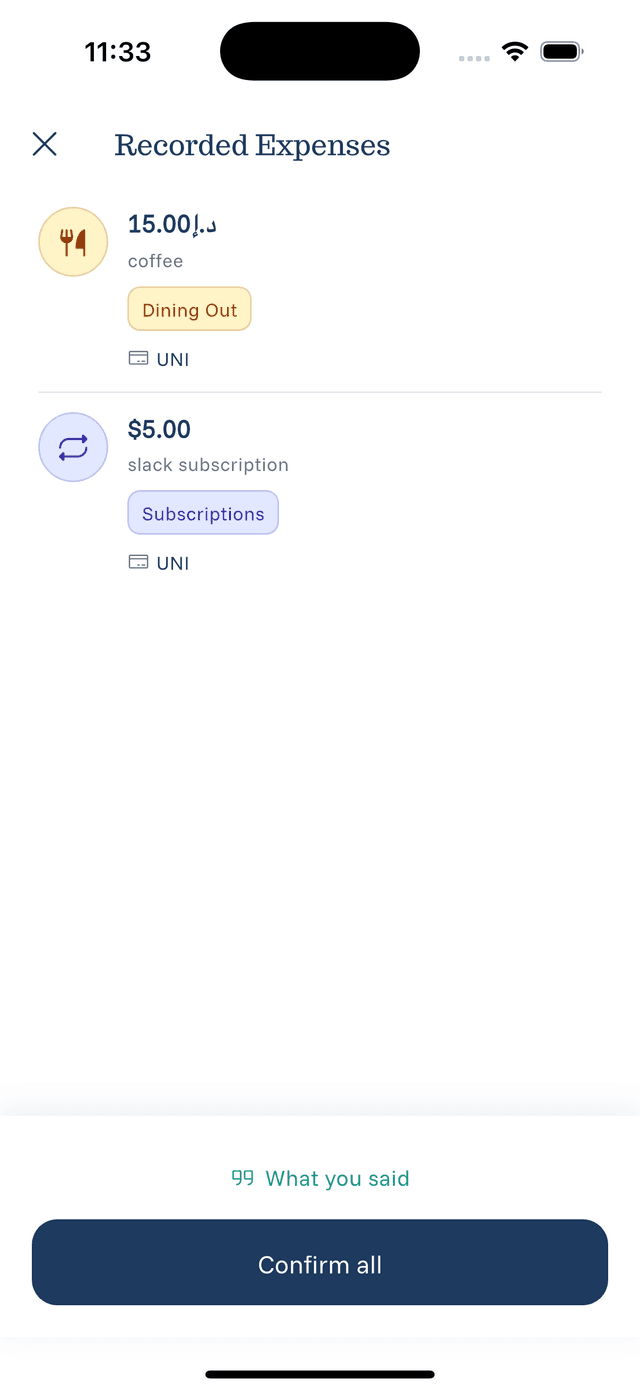
After recording, you see a list of detected expenses:
- Each expense shows amount, description, and category
- Items are ready for your review
- Nothing is saved until you confirm
Review Process
Check each expense for:
- Correct amount and currency
- Accurate description
- Appropriate category
- Right payment source
Making Corrections
If something's wrong:
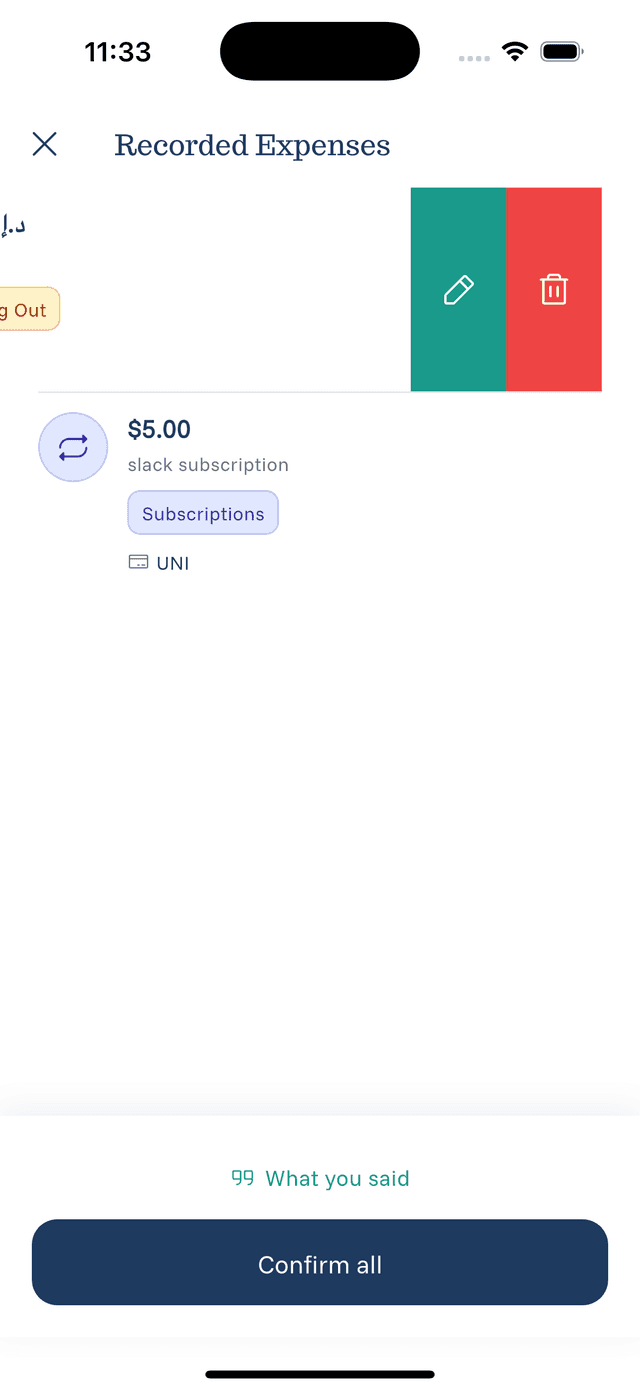
- Swipe left on the expense
- Tap Edit to modify
- Make your corrections
- Save the changes
Confirming Options
Confirm All:
- Tap the main confirm button
- All expenses are saved at once
- Fastest option when everything looks good
Confirm One by One:
- Swipe on individual expenses
- Confirm each separately
- Useful when some need edits
Delete Unwanted:
- Swipe and delete incorrect entries
- They won't be saved
After Confirmation
Confirmed expenses:
- Appear in your main expense list
- Count toward your statistics
- Can still be edited or deleted later